How to Connect an AI Chatbot to WhatsApp Business (2026 Guide)
Connect an AI chatbot to WhatsApp three ways: no-code signup, a platform or the Cloud API. Steps, code, the 24-hour rule and Meta's fees, checked November 2026.

Short answer
To connect an AI chatbot to WhatsApp Business, link your number to an AI agent through Meta's signup window, use a messaging platform, or build on the Cloud API with a webhook and a language model. A bot can send free-form replies only within 24 hours of a customer's last message, and Meta charges past 1,000 replies a month per number. PepoChat is the no-code route, from $39 a month.
Prices and rules checked 21 November 2026. Your customers already message you on WhatsApp, and you want an AI agent to answer the routine questions while you get on with the work. The guide is for owners and support leads who have never touched an API, and for developers who would rather build the connection themselves.
By the end you can pick a route, connect a number, stay inside Meta's AI rules and estimate the monthly bill. PepoChat is our product; we include it where it fits and say where other tools are the better choice.
How do I connect an AI chatbot to WhatsApp Business?
You connect an AI chatbot to WhatsApp Business by giving it access to your number through Meta's WhatsApp Business Platform. There are three routes: a no-code AI agent that uses Meta's Embedded Signup window, a messaging platform run by a Meta partner, or your own server built on the Cloud API.
| Route | Setup time (our estimate) | Monthly cost | Skill needed | Upkeep |
|---|---|---|---|---|
| No-code AI agent, such as PepoChat | Under an hour | Plan fee plus Meta's fees | None | Keep your content current |
| Messaging platform or Solution Partner | A few hours to a few days | Platform fee, per-message markup or both, plus Meta's fees | Flow builder, template approvals | Flows, templates, vendor account |
| Your own build on the Cloud API | Days to weeks | Hosting, model usage and developer time, plus Meta's fees | A developer | Every failure, retry and API change |
All three routes end at the same place: Meta's Cloud API carries the messages, and Meta's fees and rules apply. The choice is about who runs the plumbing. Embedded Signup is Meta's own signup window, which creates or selects your business accounts and connects your number to the app you picked.
Which way of connecting WhatsApp should you choose?
The right way to connect WhatsApp depends on one question: do you only answer customers, or do you also need to message them first? Answering is a job for an AI agent. Messaging first needs approved templates and a tool built for campaigns.
- Choose a no-code AI agent if customers write to you first, you want answers drawn from your website and documents, and nobody on your team writes code.
- Choose a messaging platform if you need broadcasts, marketing templates, abandoned-cart messages or appointment reminders. A Business Solution Provider (BSP), called a Solution Partner in Meta's documentation, is built for that work. An agent that only answers, PepoChat included, is the wrong tool.
- Build it yourself if you have a developer who will stay on it, and you need logic no product offers. Budget for upkeep as well as the build, because Meta's API versions, account model and identifiers all changed during 2026.
What do you need before connecting WhatsApp to a chatbot?
You need five things before connecting WhatsApp to a chatbot: a Facebook login, a business portfolio, a phone number, a display name and a payment method. If you have no portfolio or WhatsApp account yet, Meta's signup creates them for you along the way.
| What you need | What it does | Watch out for |
|---|---|---|
| Facebook login | Signs you in to Meta's signup | Needs full control of the business portfolio |
| Business portfolio | Meta's container for your business (formerly Business Manager) | New portfolios can register 2 numbers at first |
| Phone number | The number customers message | Must receive Meta's code by SMS or call, unless it stays on the Business app |
| Display name | The name on your WhatsApp profile | Must follow Meta's naming guidelines |
| Payment method | Pays Meta's message fees | Without one, replies stop after the 1,000 free ones |
You may also see new account names. Meta is splitting the WhatsApp Business account into a WhatsApp account, which holds the phone number, and a Messaging account, which holds templates, billing and webhooks. The rollout began on 23 September 2026, so your screens may show either the old name or the new ones.
How do you connect WhatsApp to an AI agent without code?
You connect WhatsApp to an AI agent without code by signing in to Meta's window from the agent's dashboard, with no webhook or token to handle. The steps below use PepoChat and an invented furniture workshop, Harbor Joinery, which gets WhatsApp questions about lead times, delivery and care. Button names come from PepoChat's WhatsApp documentation.
Step 1: Give the agent your content first
Build the knowledge base before you connect, because the first customer who writes will get whatever the agent knows at that moment. Harbor Joinery crawls its website, uploads its delivery PDF and adds a few question-and-answer pairs. The guide to training a chatbot on your website and PDFs covers each source.
Step 2: Open Channels
Click Channels under Configure in the sidebar. You must be an owner or admin on a Starter, Growth or Scale workspace. The card Connect WhatsApp or Messenger holds both buttons; on the Free plan the page shows a See plans button instead.
Step 3: Click Connect WhatsApp
A Meta window opens and the button reads Waiting for Meta…. If nothing opens, your browser blocked the pop-up, so allow pop-ups for app.pepochat.com and click again.
Step 4: Finish Meta's signup
Log in with Facebook, choose or create your business portfolio and WhatsApp account, then add or choose the number and confirm it with the code Meta sends. Meta runs these screens and can reword them. The last one has a Finish button, and closing the window before it means starting again.
Step 5: Confirm the number and send a test
PepoChat shows "WhatsApp connected" with your number, and the number appears under Connected with "no messages yet". Send a WhatsApp message to it from another phone. Within a few seconds the agent replies and a conversation tagged WhatsApp appears in Conversations.
Step 6: Add a payment method at Meta
Add a card in Meta's Billing Hub before you need it. PepoChat never bills Meta's fees for you, and Meta delivers replies past the first 1,000 of the month only when your Messaging account has a payment method.
Harbor Joinery keeps its number on the Business app, so the owner can still use the phone. Two things change. A reply sent from the phone app is not shown in the PepoChat inbox and does not pause the agent, so to take over a chat you reply from the inbox. Meta also disables broadcast lists on a number used this way (existing lists become read-only) and turns off disappearing messages in one-to-one chats.
How do you connect a chatbot to the WhatsApp Cloud API yourself?
You connect a chatbot to the WhatsApp Cloud API by creating a Meta app, getting a phone number ID and access token, verifying a webhook, and replying through the messages endpoint. The steps follow Meta's Cloud API guide as it stood on 21 November 2026. On that date the newest Graph API version was v27.0, introduced on 4 November 2026, while Meta's getting-started sample still showed v23.0.
Step 1: Create the app
In the Meta App Dashboard, click Create App, add a name and email, select the Connect with customers through WhatsApp use case and pick a business portfolio.
Step 2: Get a phone number ID and a test token
Click Start using the API. On the API Setup page, connect or create a Messaging account, then click Generate access token. Meta provides a test number, so you can message your own phone before touching a real one. Save the phone number ID and the Messaging account ID.
Step 3: Replace the temporary token
The generated token expires quickly. In Business settings, open System users, add one, and assign it your app, your WhatsApp account and your Messaging account. Generate a token with the business_management, whatsapp_business_management and whatsapp_business_messaging permissions, and store it as a secret.
Step 4: Verify your webhook
A webhook is a web address on your server that Meta calls whenever something happens. Meta's webhook rules require HTTPS with a valid certificate, and self-signed ones are refused. Meta first sends a GET request with hub.mode, hub.verify_token and hub.challenge, and you answer with status 200 and the challenge value if the token matches.
Enter the Callback URL and Verify token under Use cases, Customize, Configuration, then subscribe to the messages field.
Step 5: Receive a message and reply
Meta sends each customer message as a POST request signed in the X-Hub-Signature-256 header with your app secret. Check the signature, acknowledge the request, ask your large language model (LLM) for an answer, then send it with the text message call.
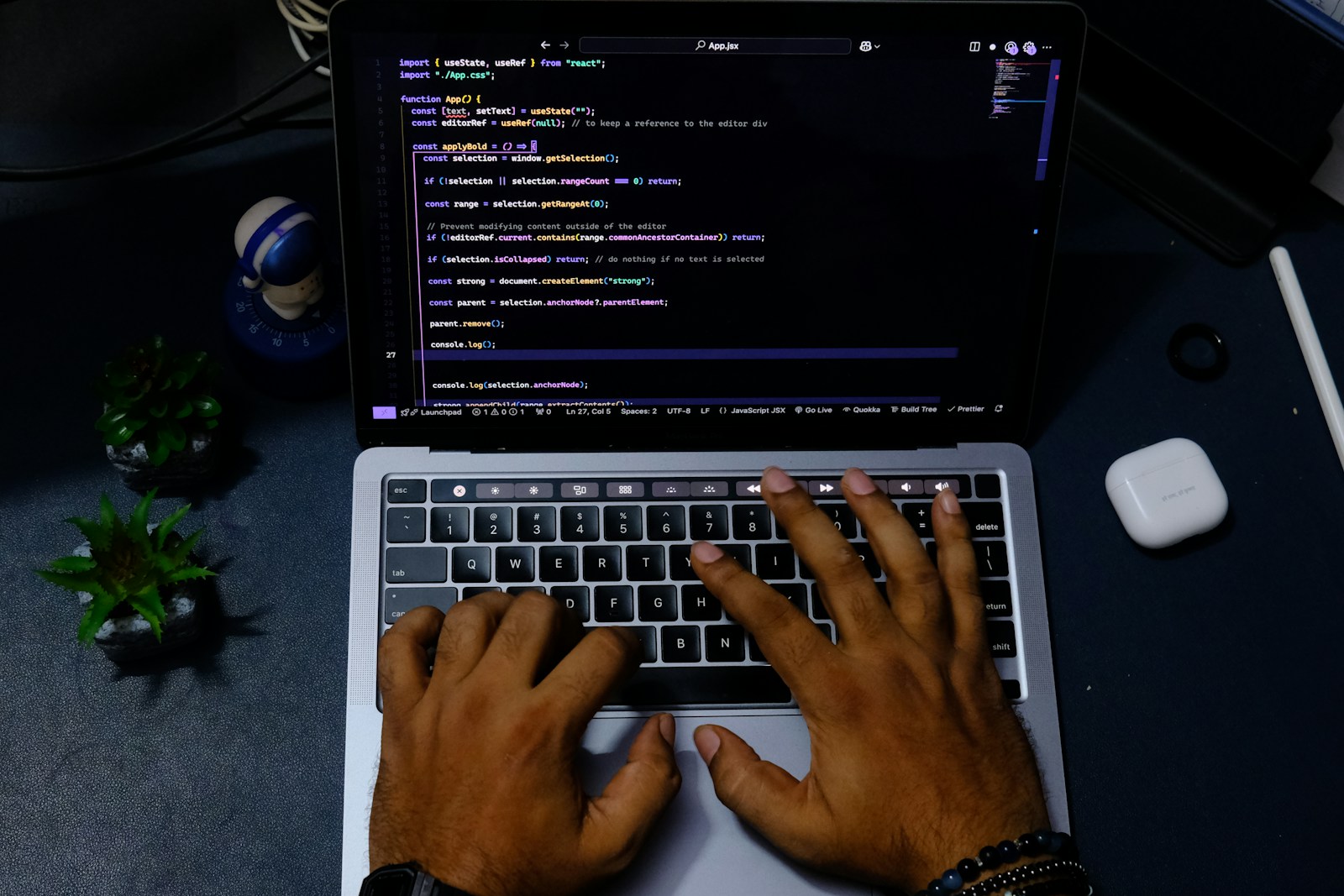
// server.mjs: run with Node 20 or later
import { createServer } from "node:http";
import { createHmac, timingSafeEqual } from "node:crypto";

const { VERIFY_TOKEN, APP_SECRET, ACCESS_TOKEN, PHONE_NUMBER_ID } = process.env;
const SEND_URL = `https://graph.facebook.com/v27.0/${PHONE_NUMBER_ID}/messages`;
const MAX_BODY = 3 * 1024 * 1024; // Meta's webhook payloads are at most 3 MB
const seen = new Set(); // Meta can deliver a webhook twice; use a database in production

function signedByMeta(rawBody, header = "") {
  const hash = createHmac("sha256", APP_SECRET).update(rawBody).digest("hex");
  const expected = Buffer.from(`sha256=${hash}`);
  const received = Buffer.from(header);
  return received.length === expected.length && timingSafeEqual(received, expected);
}

// Replace with a call to your model, grounded in your own content
const writeReply = async (question) => `Thanks, we got your message: ${question}`;

async function answer(message) {
  const body = (await writeReply(message.text.body)).slice(0, 4096);
  // A customer with a WhatsApp username may arrive with no phone number
  const target = message.from ? { to: message.from } : { recipient: message.from_user_id };
  const response = await fetch(SEND_URL, {
    method: "POST",
    headers: { Authorization: `Bearer ${ACCESS_TOKEN}`, "Content-Type": "application/json" },
    body: JSON.stringify({
      messaging_product: "whatsapp",
      recipient_type: "individual",
      ...target,
      type: "text",
      text: { body },
    }),
  });
  if (!response.ok) console.error(await response.text());
}

async function handleWebhook(req, res) {
  if (req.method === "GET") {
    const query = new URL(req.url, "https://localhost").searchParams;
    const valid = query.get("hub.mode") === "subscribe" && query.get("hub.verify_token") === VERIFY_TOKEN;
    return valid ? res.writeHead(200).end(query.get("hub.challenge")) : res.writeHead(403).end();
  }
  const chunks = [];
  let size = 0;
  for await (const chunk of req) {
    size += chunk.length;
    if (size > MAX_BODY) return res.writeHead(413).end();
    chunks.push(chunk);
  }
  const rawBody = Buffer.concat(chunks);
  if (!signedByMeta(rawBody, req.headers["x-hub-signature-256"])) return res.writeHead(401).end();
  res.writeHead(200).end(); // acknowledge first: the model can take several seconds

  for (const entry of JSON.parse(rawBody).entry ?? []) {
    for (const change of entry.changes ?? []) {
      for (const message of change.value?.messages ?? []) {
        if (message.type !== "text" || seen.has(message.id)) continue;
        seen.add(message.id);
        answer(message).catch(console.error);
      }
    }
  }
}

// One bad request (a malformed URL, a dropped connection) must not stop the server
createServer((req, res) => {
  handleWebhook(req, res).catch((error) => {
    console.error(error);
    res.destroy();
  });
}).listen(process.env.PORT ?? 3000);
We ran this handler on 21 November 2026 against webhook payloads shaped like Meta's documented examples, with the network stubbed: verification, bad signatures, a repeated delivery, a status update, an image, a sender with no phone number, a malformed URL, a dropped connection and an oversized body. It has not been run against a live WhatsApp number.
Step 6: Go live on a real number
Add your number and verify it with Meta's code. Then register it with a POST to /PHONE_NUMBER_ID/register and a 6-digit PIN, because Meta allows registration only through the API. Subscribe your app to the account with a POST to /WABA_ID/subscribed_apps, switch the app to Live and add a payment method.
Five details catch most first builds:
- Customers without a phone number. WhatsApp is rolling out usernames, and a customer who adopts one can arrive with no
fromfield. Meta requires support for the business-scoped user ID (BSUID); you reply to it withrecipient, as the sample does. - Repeated webhooks. Meta retries failed deliveries for up to 7 days, so store message IDs and ignore repeats.
- Slow acknowledgements. Meta's latency standard for webhook servers is a median under 250 milliseconds, so answer the webhook first and call the model afterwards.
- Message bursts. A number can send one message every 6 seconds to the same person, with short bursts borrowed from later. Do not split an answer into many small messages.
- IDs that will change. Meta plans to require WhatsApp account IDs in place of phone number IDs in API paths in the first half of 2028, and tells developers to plan the work in 2027.
Are AI chatbots allowed on WhatsApp?
AI chatbots are generally allowed on WhatsApp when they serve a business's own customers, but general-purpose AI assistants are barred in most countries. Clause 4.7 of Meta's WhatsApp Business Platform terms, in force since 15 January 2026, bars AI providers from the platform when their technology is "the primary (rather than incidental or ancillary) functionality being made available for use".
In plain words, three things follow:
- Not allowed: "ask me anything" assistants offered as the product itself, except in the markets where Meta is legally required to allow them, listed on its AI Providers page.
- Generally allowed: a shop, clinic or agency using AI to answer questions about its own products, orders and bookings, because the AI is ancillary to the business rather than the thing on offer. The terms also say a business "may retain an AI Provider as your Solution Provider".
- Data limit: under that arrangement, WhatsApp data may not be used to train or improve AI models, except to fine-tune a model for your exclusive use. Ask any vendor to confirm this in writing.
Meta decides these cases "in its sole discretion", so no vendor can promise that a given bot is compliant, and this section is not legal advice. The practical test is simple: keep the bot on your business's topics and have it decline everything else.
How does the 24-hour window change how a WhatsApp bot behaves?
The 24-hour customer service window means a WhatsApp bot can send free-form replies only within 24 hours of the customer's last message or call. Each new message restarts the timer. Once the window closes, a business can send only pre-approved templates, and only to people who opted in.
Three habits follow from that rule:
- Answer fully now. A bot should not promise to "message you tomorrow" unless someone can send a template or the customer writes back.
- Collect another way to reach them. When a case will take more than a day, ask for an email address before the window closes.
- Treat human replies the same way. A teammate who answers 25 hours later gets Meta's error 131047 and the customer sees nothing. PepoChat shows "The last reply was not delivered" above the reply box, and a new reply is delivered once the customer writes again.
How do you train a WhatsApp chatbot on your own content?
You train a WhatsApp chatbot by giving it your website, documents and policies as a knowledge base, then instructing it to answer only from them. WhatsApp changes the style more than the method, because customers type short questions on a phone and expect short answers.
Write key facts as text. PepoChat's agent cannot read a photo, voice note or file sent on WhatsApp, and asks the customer to describe it in words, so a price list that exists only as an image is a gap. Harbor Joinery adds this to its agent instructions:
You answer for Harbor Joinery, a furniture workshop.
Only answer questions about our products, orders, delivery and care.
If asked about anything else, say you can only help with Harbor Joinery.
Keep replies under 80 words unless the customer asks for more detail.
If our content does not cover the question, offer to connect a person.
The second and third lines do double duty: they keep answers accurate, and they keep the bot on the right side of clause 4.7.
How should a WhatsApp chatbot hand off to a person?
A WhatsApp chatbot should hand off the moment a customer asks for a person, or when it cannot answer from your content. Meta makes a route to a human mandatory: the WhatsApp Business Messaging Policy, last updated 23 September 2026, says you may use automation in the 24-hour window "but must also have available prompt, clear, and direct escalation paths". Its examples include an in-chat transfer to a person, a phone number, email and a support form.
In PepoChat the agent escalates when asked, and your team is emailed with the last messages and a link. A teammate replies from the team inbox, the answer arrives in the customer's WhatsApp chat, and the agent stops answering in that conversation. Setting it back to unresolved hands it back to the agent. The guide to human handoff covers what context the person needs and what the customer should see.

How do you test a WhatsApp chatbot before launch?
You test a WhatsApp chatbot by messaging the real number from a second phone and checking how it handles known answers, unknown answers, off-topic requests and a request for a person. Run these seven checks before you tell customers the number is live.
| Test | Send this | A pass looks like |
|---|---|---|
| Known answer | "How long does delivery take?" | The right figure from your content |
| Unknown answer | A question your content does not cover | Says it does not know, offers a person |
| Off-topic | "Write me a poem about the sea" | Declines and stays on your business |
| Human request | "I want to talk to a person" | Hands off, and your team is alerted |
| Photo | A picture of a damaged table | Asks the customer to describe it in words |
| Language | The delivery question in Spanish | Answers in Spanish |
| Late reply | An inbox reply 25 hours after the last message | Flagged as not delivered |
For a fuller pass, work through the 40-question chatbot test script, which covers prompt injection and frustrated customers as well.
Why is my WhatsApp chatbot not replying?
A WhatsApp chatbot usually stops replying because the 24-hour window closed, the free messages ran out with no payment method, the webhook failed, or the number is not fully registered. The first four rows below apply to PepoChat and the rest to your own build.
| What you see | Likely cause | Fix |
|---|---|---|
| Nothing opens after Connect WhatsApp | Browser blocked the pop-up | Allow pop-ups for app.pepochat.com |
| "Meta did not complete the connection" | No full control of the portfolio, or number registered elsewhere | Get full control, or release the number |
| "WhatsApp connected, but the number is not registered for sending yet" | A previous provider's two-step PIN | Turn off two-step verification in WhatsApp Manager, connect again |
| "The last reply was not delivered" | Over 24 hours since the customer wrote, or free replies used with no payment method | Wait for the customer, or add a payment method |
| Webhook will not verify | Wrong token, or challenge not returned | Return hub.challenge with status 200 |
| No webhooks for a real number | App not subscribed, or still in Dev mode | POST to /WABA_ID/subscribed_apps, switch to Live |
| Error 190 | Access token expired | Use a system user token |
| Error 133010 | Number not registered | POST to /PHONE_NUMBER_ID/register |
| Error 131042 | Payment problem on the account | Check Billing Hub |
| Error 131056 | Too many messages to one person | Send fewer, retry with growing delays |
How much does an AI chatbot on WhatsApp cost per month?
An AI chatbot on WhatsApp costs the tool's fee plus Meta's per-message charges, and Meta does not charge for the first 1,000 service messages per number each month. Service messages are the free-form replies inside the 24-hour window. The US rate is $0.0034 per delivered message as of 1 October 2026, and Meta can change rates each quarter.
Here is Harbor Joinery's bill with customers in the United States:
| AI replies per month | PepoChat plan | PepoChat cost | Meta's fees | Total |
|---|---|---|---|---|
| 800 | Starter | $39.00 | $0.00 | $39.00 |
| 3,000 | Starter plus 2,000 extra at $39 per 1,000 | $117.00 | 2,000 x $0.0034 = $6.80 | $123.80 |
| 3,000 | Growth | $149.00 | $6.80 | $155.80 |
The rate follows the customer's country code, so the same 2,000 billable replies cost $2.80 in India, $13.60 in Brazil, $44.00 in the UK and $110.00 in Germany. Replies your team types count toward Meta's 1,000 but not toward your PepoChat allowance. Growth becomes the cheaper plan once you pass about 3,800 AI replies a month.
Where PepoChat fits
PepoChat fits a business that wants one AI support agent on its website and WhatsApp without running any of the plumbing. On Starter ($39), Growth ($149) and Scale ($499), the same agent uses the same knowledge base, actions, booking and handoff rules on both channels, and WhatsApp chats land in the team inbox with a channel tag. It connects as a Meta-approved app through Embedded Signup. PepoChat adds no fee per number or per message, and Meta bills its charges directly to your own account.
The limits are real, so check them against what you need:
- WhatsApp is not on the Free plan, which covers website chat with 100 AI replies a month.
- The agent answers people who write first. It sends no outbound messages, templates, broadcasts or campaigns, and does not answer WhatsApp calls.
- Messages are text only in both directions: it cannot read a photo, voice note or file, and your team cannot attach one.
- A reply is delivered only within 24 hours of the customer's last message, and one longer than 4,096 characters is sent as several WhatsApp messages, each billed by Meta past the free tier.
- A reply sent from the WhatsApp Business app on your phone does not show in the PepoChat inbox.
If you need campaigns or reminders, choose a messaging platform instead. If you need answers, you can build and test the agent for free, then connect your number on a paid plan.
What to do next
- Estimate Meta's fees with WhatsApp Business API pricing and compare tools in the best WhatsApp AI chatbots. Still on the app? Read WhatsApp Business app vs API.
- Read the WhatsApp channel documentation for every screen, limit and error message.
- Write the rules your agent follows with these support chatbot instruction examples.
- Save your launch checks as repeatable agent tests, so a content change cannot quietly break an answer.
- Create your PepoChat account, add your content, and connect WhatsApp once the agent passes your tests.
Frequently asked questions
- Can I put ChatGPT on my WhatsApp Business number?
- Not as a general assistant. Meta's terms have barred general-purpose AI assistants from the WhatsApp Business Platform since 15 January 2026, except in the markets where Meta is legally required to allow them, listed on its AI Providers page. An AI model behind a bot that answers questions about your own business is generally fine. Keep it on those topics, offer a route to a person, and remember Meta decides.
- Is the WhatsApp Cloud API free to use?
- Partly. Messages customers send you cost nothing, and each business number gets 1,000 free service messages a month. From the 1,001st, Meta charges per delivered message at the rate for the customer's country, for example $0.0034 in the United States as of 1 October 2026. Templates are charged separately, and hosting and model costs are yours.
- Can I keep using the WhatsApp Business app after connecting a chatbot?
- Yes, if Meta's signup offers it for your number. The app keeps working, but Meta disables broadcast lists and unlinks companion devices, which you can link again. With PepoChat, a reply sent from the phone app is not shown in the team inbox and does not pause the agent, so take over a chat from the inbox.
- Can a WhatsApp chatbot message customers first?
- Only with a pre-approved template sent to someone who opted in. Free-form messages are allowed only inside the 24-hour window that opens when the customer writes or calls. Reminders, promotions and follow-ups after that window therefore need template messages, which Meta charges for per delivered message, and a tool that supports them.
- Can a WhatsApp chatbot understand voice notes and photos?
- It depends on the tool. The Cloud API delivers voice notes, photos and files to your server as media messages, and your own build can transcribe or analyze them. PepoChat's WhatsApp channel is text only: its agent cannot read them and asks the customer to describe the problem in words, and your team cannot attach files to replies.
- Do I need Meta business verification to run a WhatsApp chatbot?
- Not to answer customers who write to you. Meta's messaging limits apply to messages sent outside the 24-hour window, starting at 250 people in a rolling 24 hours for a new portfolio. Verifying your business is one way to raise that limit to 2,000, and it also raises your registered number cap from 2 to 20, so it matters mainly as you grow.
Try this on your own site in ten minutes
PepoChat includes every chat feature on the free plan — 100 AI replies and 5 knowledge sources a month, no credit card.
Keep reading
Chatbase vs PepoChat: Which AI Support Agent Fits Your Team in 2026?
An honest side-by-side of Chatbase and PepoChat on pricing, free plan or trial, sources, handoff, booking, actions, channels and voice, and a pick by team type.
Intercom Fin Pricing Explained, and What a Flat-Plan Alternative Costs
What Intercom Fin's $0.99 per outcome adds up to once you count resolutions and seats, with a worked 2,000-conversation example and when a flat plan wins.