
How to Add an AI Chatbot to WordPress Without Code (2026 Guide)
Install an AI chatbot on WordPress with a plugin, feed it your sitemap, answer WooCommerce order questions with a read-only key, and fix the caching issues.
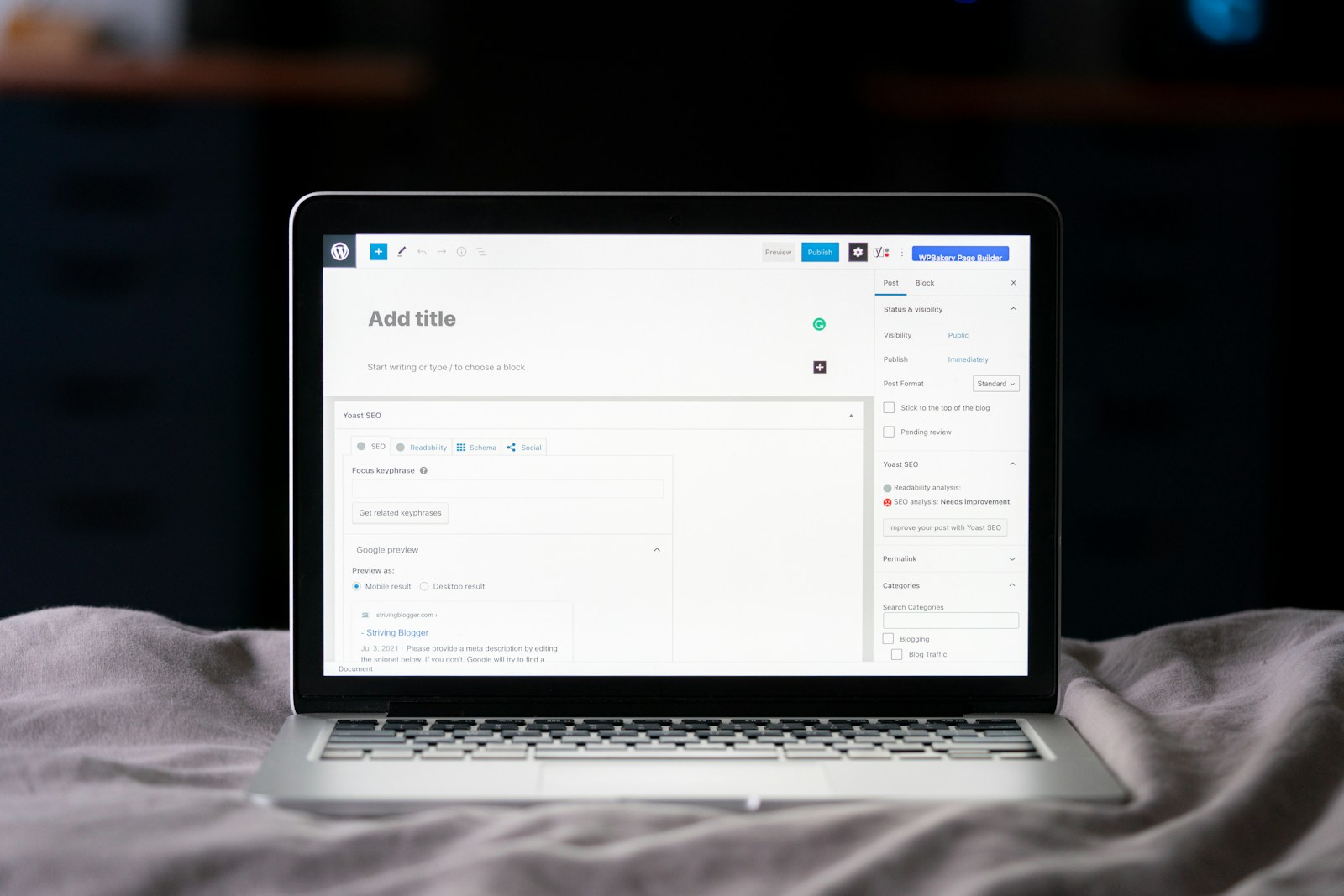
Short answer
The fastest way to add an AI chatbot to WordPress is a plugin that loads a hosted widget and answers from your own pages, not a scripted flow. With PepoChat the steps are: create a free workspace, import your site as one knowledge source, install the plugin, paste your Organization ID under Settings → PepoChat, and save. No theme code is edited, the loader is about 6 KB and async, and WooCommerce order status needs only a read-only API key.
Most "WordPress chatbot" tutorials are still about building a decision tree: welcome message, three buttons, a form at the end. That is not what people mean when they type "AI chatbot for WordPress" in 2026. They mean a widget that reads their pages and answers a visitor's actual question, hands over to a person when it cannot, and does not slow the site down.
This guide is for anyone who runs a WordPress site and can install a plugin: a shop owner on WooCommerce, an agency managing client sites, a SaaS with a marketing site on WordPress, a clinic or school with a busy contact form. You do not need to touch PHP. Where a developer would do something differently, the post says so.
The walkthrough uses PepoChat, whose WordPress plugin is free and GPL-licensed, but the comparison of installation methods, the knowledge-base advice and the caching fixes apply to any hosted chat widget.
What should an AI chatbot for WordPress actually do?
An AI support agent is a chat widget that answers from a private knowledge base built from your own content, takes actions in connected tools, and escalates to a human inbox when it cannot help. That is a different product from the chatbot builders WordPress users have seen for a decade, and the difference shows up in four places.
It answers from your pages. The agent searches your imported content for every reply and answers from what it finds. If your shipping page says orders leave within two business days, that is what it tells the visitor. If nothing relevant exists, it says so and offers a person rather than guessing. The hallucination guide explains why that "I don't know" behaviour matters more than any other feature.
It updates itself. Website sources are re-fetched weekly and only pages whose text changed are re-indexed, so a price change on a WooCommerce product page reaches the agent without you rebuilding anything.
It does things. With an integration connected, the agent can look up a WooCommerce order, check a Stripe subscription, file a Zendesk or Freshdesk ticket, or book a meeting on a real calendar. A flow builder can only show buttons.
It hands off. When the visitor asks for a person, or the knowledge base has nothing relevant, the conversation moves to a team inbox with the full transcript. Your team replies under their own name. The human handoff post covers what that should look like.
A scripted chatbot, by contrast, is a tree of pre-written messages and buttons; it never reads your site and it cannot answer a question its author did not anticipate. Scripted bots still have a place for strict intake flows, but they are not what "AI chatbot" means any more.
Four ways to add a chatbot to WordPress, compared
Every hosted widget, PepoChat included, is ultimately one script tag. Where you put that tag is the real decision, and there are four common options.
| Method | How it works | Good for | Watch out for |
|---|---|---|---|
| Official plugin | Install the plugin, paste an ID, choose settings in wp-admin. | Anyone. Survives theme changes and updates. Adds per-page and logged-in controls. | Needs plugin install rights. One more plugin on the list. |
Theme footer or functions.php | Add the script to footer.php or hook it to wp_footer in the theme. | Developers who already maintain a child theme. | Lost on a theme switch, and on a theme update unless you use a child theme. No admin UI. |
| Code-snippet plugin (WPCode, Code Snippets) | Paste the tag as a "footer" snippet in a general-purpose snippet manager. | Sites that already use one for tracking pixels. | Another plugin anyway, with none of the widget-specific options. Easy to paste twice. |
| Google Tag Manager | Add a Custom HTML tag firing on all pages. | Marketing teams who own GTM and not wp-admin. | Depends on GTM loading; consent tools may block it; harder to debug. |
The theme-footer route relies on the wp_footer action, which the WordPress developer reference describes as the hook that "prints scripts or data before the closing body tag on the front end", and it points out that the hook only fires if the theme author calls it. Most themes do, but it is one more thing to check. The official plugin uses the same hook internally; it just does it for you, with settings in the admin.
How to install the PepoChat WordPress plugin
The whole install takes about ten minutes, most of it waiting for the first site import. The plugin is version 1.0.0, free and open source under the GPL. Until the WordPress.org listing is approved, you download the zip from the WordPress page; once listed, you will be able to search for it under Plugins → Add New Plugin instead, and updates will arrive through the normal Plugins screen.
Create a free PepoChat workspace
Sign up with an email or a Google account. No card is needed. On the free plan every feature is enabled, with 200 AI replies and 5 knowledge sources a month; the pricing page has the current allowances.
Import your WordPress site as the knowledge base
Open Knowledge Base → Add New and paste your site address, or your sitemap address. A whole-site crawl or a sitemap import counts as one knowledge source however many pages it holds. Wait for the import card to read "Completed" before you test. The next section says what to feed it.
Download and upload the plugin
Download
pepochat.zipfrom the WordPress page. In your WordPress admin go to Plugins → Add New Plugin → Upload Plugin, choose the zip, click Install Now, then Activate Plugin. This is the standard "Upload via WordPress Admin" method in the WordPress plugin documentation. Activation takes you straight to the plugin's settings page.Copy your Organization ID
In the PepoChat dashboard open Widget Setup. Step 1 on that page shows your Organization ID, a 32-character code, with a Copy button. You can also copy the whole HTML install snippet; the plugin picks the ID out of it.
Paste it under Settings → PepoChat
Paste the ID, choose the corner, leave preload on, and click Save changes. The status line at the top of the page turns to "Connected. The chat widget is live on your site."
Open your site in a private window
The launcher sits in the corner you chose on every page. Ask it a question that your site answers, then one it does not, and check that the second one ends with an offer to reach a person.
Colours, the greeting, suggested questions and the agent's persona are not in the plugin. They live under Widget Customization in the dashboard, and a change there is live on WordPress immediately, so an agency can tune a client's bot without logging in to their wp-admin. The customization docs list every setting.
The plugin settings
| Setting | What it does |
|---|---|
| Organization ID | Connects the widget to your workspace. Required. |
| Widget position | Bottom right or bottom left. |
| Preload the chat in the background | On by default. The chat frame loads during idle time after your page has finished, so the first open is instant. Turn it off to load only when a visitor clicks the launcher. |
| Hide the widget for logged-in users | Keeps the widget away from editors and members while visitors still see it. |
| Hide on these pages | One path per line, * as a wildcard. /checkout hides it on the checkout page; /my-account/* hides it on every account page. |
Saving the settings also purges the common page caches (LiteSpeed, WP Rocket, W3 Total Cache, WP Super Cache, WP Fastest Cache, SiteGround, WP Engine and Breeze), which is why the widget usually appears on the front end the moment you save.
For developers: two filters
If you maintain a child theme or a site-specific plugin, two filters let you override the plugin's own rules without forking it:
// Decide per request whether the widget prints.
add_filter( 'pepochat_should_render', function ( $render, $settings ) {
    return $render && ! is_page( 'internal-tools' );
}, 10, 2 );

// Point a staging site at a different widget build.
add_filter( 'pepochat_widget_script_url', fn () => 'https://widget.pepochat.com/widget.js' );
Deleting the plugin from the Plugins screen removes its settings from the database, so an uninstall leaves nothing behind.

What to feed the knowledge base on a WordPress site
The plugin puts the widget on the page. What the agent says comes from the knowledge base, the private collection of pages, files and snippets the agent searches before every reply. On WordPress you have three easy sources.
The sitemap. Since WordPress 5.5, every site publishes an XML sitemap at /wp-sitemap.xml covering, in the words of the core announcement, "all public and publicly queryable post types and taxonomies, as well as for author archives and of course the homepage". SEO plugins such as Yoast or Rank Math replace it with their own, usually at /sitemap_index.xml. Either works: paste the sitemap address into Knowledge Base → Add New and every listed page is imported, sitemap indexes included, as one knowledge source.
A crawl. If you would rather not think about sitemaps, paste the homepage. The crawler follows same-site links breadth first, up to 50 pages and 3 levels deep, with include and exclude path filters so you can keep /blog/ out or restrict it to /help/. It respects robots.txt Disallow rules, spaces its requests so it does not load your server, skips pages over 5 MB, and keeps only a page's main content, so menus, sidebars and cookie banners never compete with your real answers. For a site with more than 50 important pages, the sitemap import is the better choice.
Documents and snippets. A returns policy that lives only in a PDF, a price list in a spreadsheet, or a fact that is not on any page can be uploaded or typed in directly. PDF, DOCX, Markdown, HTML, TXT, CSV, JSON and images are supported; scanned PDF pages are read by a vision model. Text snippets and Q&A pairs do not count as knowledge sources at all, which makes them the cheapest way to fix one wrong answer. The training guide goes deeper on what "training" really means here.
Two habits make a big difference on WordPress specifically:
- Import the pages customers ask about, not the whole archive. Ten years of blog posts add noise. Use the exclude filter or a hand-picked list of up to 20 links for the pages that matter: pricing, shipping and returns, opening hours, product specs, contact details.
- Keep one version of the truth. If an old pricing page is still published under a different slug, the agent may answer from it. Unpublish stale pages; the weekly re-fetch drops them.
Published Help Center articles are mirrored into the knowledge base automatically, so if you write short how-to articles in the dashboard they appear both on the widget's Help tab and in the agent's answers.
How to answer "where is my order?" on WooCommerce
For a shop, order status is the single most common question, and no static page can answer it. The WooCommerce integration lets the agent look up a live order, and it needs only a read-only key.
Create a read-only REST API key
In WordPress go to WooCommerce → Settings → Advanced → REST API → Add key. Set the description to "PepoChat", pick an administrator as the user, set Permissions to Read, and click Generate API key. WooCommerce's own REST API documentation is explicit that "the Consumer Secret is shown only once", so copy both values before leaving the page. Two prerequisites from the same page: the store must be served over HTTPS, and Settings → Permalinks must not be set to Plain, or the REST routes do not exist.
Paste it into PepoChat
Open App Integrations → WooCommerce, enter your store domain (mystore.com, or mystore.com/shop if WordPress lives in a folder), the consumer key and secret, tick the actions you want, and click Add actions. Test "Check WooCommerce order" with a real order number, then switch the actions on. The WooCommerce integration docs have the exact screens.
What the agent can and cannot see
Two actions are available. Check WooCommerce order takes an order number and reports status, dates, total, currency and payment method. Find WooCommerce orders by email takes an email address and lists up to three recent orders. The agent reads only the response fields allowed on the action and summarises them in plain language; it never pastes raw API output, and a read-only key cannot change, refund or cancel anything.
One caution the docs spell out: WooCommerce order numbers are sequential, and the lookup by number has no email check, so anyone who guesses a number can hear that order's status and total. If that matters to your store, keep only the email lookup enabled, or ask visitors to verify their email with a one-time code before the agent looks anything up. The Shopify and WooCommerce order-status post walks through that verification pattern and the privacy trade-offs.
If a correct key returns a 401 "Sorry, you cannot view this resource", your host is probably stripping the Authorization header; the usual fix is the SetEnvIf Authorization rule in .htaccess.
Does the chatbot work with Elementor, Divi, block themes and WooCommerce themes?
Yes, and the reason is structural rather than a list of tested themes. The plugin adds one script tag through the footer hook, and the chat itself runs inside its own iframe. Your theme's CSS cannot reach into the chat window and the chat's CSS cannot reach out, so there is nothing for Elementor, Divi, Bricks, WPBakery, Beaver Builder or a block theme to conflict with. The launcher is a fixed-position button in the corner; the chat window is 400 by 600 pixels and shrinks to fit small screens.
Three practical notes:
- Page builders with their own "custom code" boxes. Elementor Pro and Divi both offer a place to paste site-wide scripts. Do not paste the snippet there as well as installing the plugin; you would get two loaders, and the second is ignored but still downloaded.
- Full-site editing (block) themes. There is no
footer.phpto edit, which is exactly why the plugin route is easier: it does not depend on template files. - Storefront and other WooCommerce themes. Nothing special is needed. If your theme adds its own sticky "cart" or "back to top" button in the bottom-right corner, switch the widget to bottom left in the plugin settings.
For non-WordPress builders (Webflow, Wix, Squarespace, Shopify, Framer) the website builders guide lists where the custom-code box lives on each.
Will an AI chatbot slow down my WordPress site?
Not measurably, if the widget is built the way it should be. The concern is legitimate: WordPress sites already carry themes, builders and a dozen plugins, and a chat widget that injects a megabyte of JavaScript on every page load would hurt Core Web Vitals.
PepoChat's loader is about 6 KB and loads asynchronously after your page has rendered, so it never blocks the first paint. The chat frame is a separate document that is fetched either during idle time (with preload on) or on the first click (with preload off). A preloaded widget only reads your public widget settings; a visitor session is created only when someone actually opens the window, so visitors who never use the chat never create one.
If you audit with Lighthouse and want the smallest possible first-load footprint, turn preload off in the plugin settings. The trade-off is a short delay when a visitor first opens the chat. For most sites the default is the right call.
The script-tag install guide covers the loader in more detail, including the window.EchoWidget JavaScript API for showing or hiding the widget from your own buttons.
Troubleshooting: caching, CDNs and "not allowed" messages
Almost every "the widget does not appear" report on WordPress has the same cause: a cached page.
I see the widget when logged in, visitors do not. Your host or a caching plugin is serving stored copies of pages to anonymous visitors. Saving the PepoChat settings purges the caches listed earlier. If you use a different plugin or a CDN such as Cloudflare, purge it once. WP Rocket, for example, has a "Clear and preload cache" option in the admin toolbar and on its dashboard, per its cache-clearing documentation. Logged-in users usually bypass the cache, which is why you see the widget and visitors do not.
"This website is not allowed to use this chat widget." Your workspace's allowed-domains list does not include this site. Add the domain under Widget Customization and save; subdomains are included automatically. Add the staging domain too while you test. The allowed domains docs explain the matching rules.
"That does not look like a PepoChat Organization ID." The pasted value is not a 16 to 64 character ID. Copy it again from Widget Setup, or paste the whole install snippet and let the plugin extract it.
The widget appears on the checkout page and I do not want it there. Add /checkout and /checkout/* under "Hide on these pages". Consider hiding it on /my-account/* as well if you do not want logged-in customers to see it, or use the logged-in-users switch.
A JavaScript optimiser broke it. Plugins that "delay" or "defer" all JavaScript occasionally hold back the loader until the first user interaction, which delays the launcher. Add widget.pepochat.com to the optimiser's exclusion list.
The agent answers but says it cannot find things that are on the site. The import probably ran before the pages were published, or the pages are behind a login. Click Sync website pages in the Knowledge Base to re-fetch now, and remember the crawler sees what an anonymous visitor's first request sees.
What to add to your privacy policy
A hosted chat widget is a data processor, and your privacy policy should say so. The facts to state for PepoChat are short.
The widget sets no cookies on your WordPress site; its session identifier lives in the widget's own browser storage, and it does not track visitors across sites. Nothing is sent until the chat window is opened; a preloaded widget only reads your public widget settings. What leaves your site is what a visitor types into the chat, plus a name, email, phone or company they choose to give, either through lead capture or when verifying their email with a one-time code. Replies are generated by OpenAI models from the conversation, the retrieved passages from your knowledge base and your agent instructions.
State that your site uses PepoChat (operated by PepoCloud LLC) for support chat, that messages and any contact details given are processed to answer and route the conversation, and name the connected tools whose data the agent looks up on the visitor's request, such as WooCommerce. If you operate under the GDPR, list PepoChat as a processor and the model provider as a sub-processor. PepoChat does not currently claim a hosting region, a signed DPA template or certifications such as SOC 2, so ask before promising one to your own customers. The GDPR post and the privacy notes cover the rest, including data retention settings and what the team inbox stores.
What to do next
Install the plugin from the WordPress page, import your sitemap, and ask the widget the five questions your contact form receives most. If any answer is wrong, fix the page or add a Q&A pair rather than editing a script. For a shop, connect WooCommerce next and read the order-status guide before deciding whether to require email verification. When you are ready to compare PepoChat with the other WordPress-friendly options, the small business chatbot roundup is the honest version.
Frequently asked questions
- What is the easiest way to add an AI chatbot to a WordPress site?
- Install a plugin that loads a hosted widget and paste one ID. With PepoChat you create a free workspace, import your site or sitemap as a knowledge source, upload the plugin zip under Plugins → Add New Plugin → Upload Plugin, activate it, and paste your Organization ID under Settings → PepoChat. No theme files are edited and the widget appears on every page.
- Do I need to edit my theme or functions.php to add a chatbot?
- No. A plugin adds the script through the wp_footer hook for you and keeps the settings in wp-admin, so the widget survives theme switches and updates. Editing footer.php or functions.php works too, but the change is lost when the theme updates unless you use a child theme, and it gives you no per-page or logged-in-user controls.
- Can a WordPress chatbot answer 'where is my order?' for WooCommerce?
- Yes, with a read-only WooCommerce REST API key. Create it under WooCommerce → Settings → Advanced → REST API with Permissions set to Read, paste the consumer key and secret into the integration, and the agent can report an order's status, dates and total by order number or list a customer's recent orders by email. A read-only key cannot change, refund or cancel anything.
- Will an AI chatbot slow down my WordPress site?
- A well-built widget does not. PepoChat's loader is about 6 KB, loads asynchronously after the page has rendered, and opens the chat in a separate frame that is fetched during idle time or on the first click. Nothing blocks the first paint. If you want the smallest first-load footprint, turn preload off in the plugin settings so the frame loads only when a visitor clicks.
- Why does the chatbot show for me but not for visitors?
- Almost always a page cache. Logged-in users bypass the cache, so you see the new widget while visitors get stored pages. Saving the PepoChat plugin settings purges LiteSpeed, WP Rocket, W3 Total Cache, WP Super Cache, WP Fastest Cache, SiteGround, WP Engine and Breeze caches; for another plugin or a CDN such as Cloudflare, purge it once and reload in a private window.
- Is the PepoChat WordPress plugin free, and does it work with page builders?
- The plugin is free and open source under the GPL, and PepoChat's free plan includes every feature with 200 AI replies and 5 knowledge sources a month. It works with Elementor, Divi, Bricks, WPBakery, block themes and WooCommerce themes because it adds one script tag and runs the chat in its own iframe. Until the WordPress.org listing is approved, install it from the zip on pepochat.com/wordpress.
Try this on your own site in ten minutes
PepoChat includes every feature on the free plan — 200 AI replies and 5 knowledge sources a month, no credit card.
Keep reading
Chatbase vs PepoChat: Which AI Support Agent Fits Your Team in 2026?
An honest side-by-side of Chatbase and PepoChat on pricing, free tier, sources, handoff, booking, actions, channels and voice, plus a pick by team type.
Intercom Fin Pricing Explained (and What a Flat-Plan Alternative Costs)
What Intercom Fin's $0.99 per resolution adds up to once you count outcomes and seats, with a worked 2,000-conversation example and when a flat plan wins.